


I was clearing out some storage on my phone, but I did it the wrong way, and the result was that I accidentally deleted an entire folder of videos. I spent the next two hours confused and stressed – Googling things like “get deleted videos back android please”. But I figured it out. And now I’m writing this so you don’t have to spend two hours doing what I did.
First – Stop Using Your Phone Right Now
This is really important, so pay attention. The second you realize something’s deleted, put the phone down and don’t use it at all until and unless your deleted file or video is recovered. When you delete a file on Android, it doesn’t actually disappear immediately. The space gets marked as “free,” but the actual deleted data is there until something new overwrites it. Every photo or video you take, every app you install, every notification, all of that is writing over the “free marked” space where your deleted data is still lying, that you’re trying to recover.
So. Stop. Using. The. Phone. I know that’s hard. Our phones are basically attached to our hands in 2026. But this step genuinely makes the difference between recovering your stuff and not.
Method 1: Check the Recently Deleted Folder First
Before anything else, open your Gallery app. Almost all Android phones in 2026 have a Trash or Recently Deleted folder built right inside the Gallery. Samsung has the Bin. OnePlus and Vivo has a Trash. It’s usually in the Albums section, named as the recently deleted folder.
If your video or photo is in there, just tap it, hit Restore, and you’re done. Genuinely. That’s it.
Most of these only hold files for 30 days. After that, they get permanently wiped. So if you deleted something two months ago, this won’t help. But don’t lose hope, keep reading.
Method 2: Check Google Photos and Photos Trash
Okay, so Google Photos has its own Trash that works separately from your Gallery app’s trash. A lot of people don’t know this.
If you had Google Photos backup enabled, which, if you’re using an Android and have a Google account, there’s a pretty good chance you did, your deleted photos and videos might be sitting right there.
- Open Google Photos. Tap Library at the bottom. Look for Trash in the top right corner. Tap it.
- If your video is there, long-press to select it, tap the Restore button. Done.
Google Photos keeps locally deleted stuff for 30 days. Now, if the content was backed up it gets 60 days. After that, it’s gone from there too.
Last year, my cousin accidentally deleted her entire camera roll and genuinely thought it was over. Opened Google Photos trash on a whim. Every single photo was sitting right there.
Method 3: Check Google Drive and Other Cloud Backups
This sounds obvious, but people forget about it in a panic.
Have you set up automatic backups? Google One backup? Samsung Cloud? Dropbox auto-sync? OneDrive? Anything…
Go through each of these. Seriously, just take five minutes and actually check every cloud service you’ve ever logged into on that phone. You might be surprised by what’s been quietly backing up in the background for months.
Google One in particular. If you’re paying for extra Google storage, your phone might have been doing full device backups automatically. Go to drive.google.com, look for Backups in the left panel.
Method 4: Use Free Data Recovery software for Android
Alright. So let’s say you’ve checked everything above and still nothing. The files aren’t in trash, they weren’t backed up, they’re just… gone.
This is where you actually need proper recovery software, and the one I’d point you to is Stellar Free Data Recovery for Android. I tested many free Android data recovery tools, and this one has consistently been the most reliable, no bluff – it actually finds stuff. And for free.

But here are a couple of things to know before you start:
- You’ll need a Windows PC for this.
- Keep your phone charged.
- Don’t use your phone to avoid data overwriting.
Here’s how to do it:
Download Stellar Data Recovery for Android and install it on your PC.
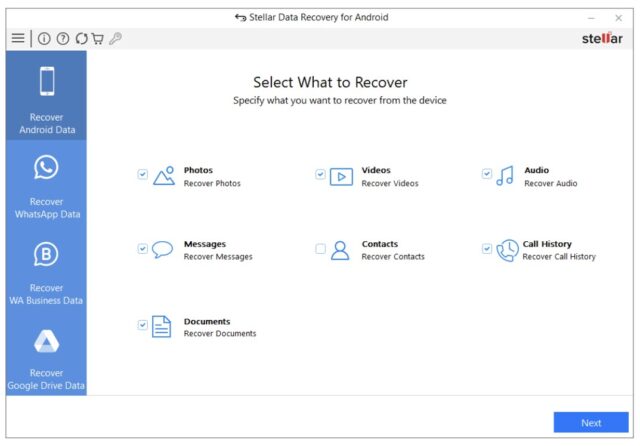
Open the software. On the main screen, you’ll see options for what type of data you want to recover. Select the Videos (or Photos, or whatever you’re looking for) and hit Next.
Grab a USB cable and plug your Android into the PC. Your phone will pop up a notification asking what you want to use the USB connection for. Choose the File Transfer option.

Now here’s the step that trips people up: USB Debugging. You have to turn this on. Without it, the software can’t do a deep scan.
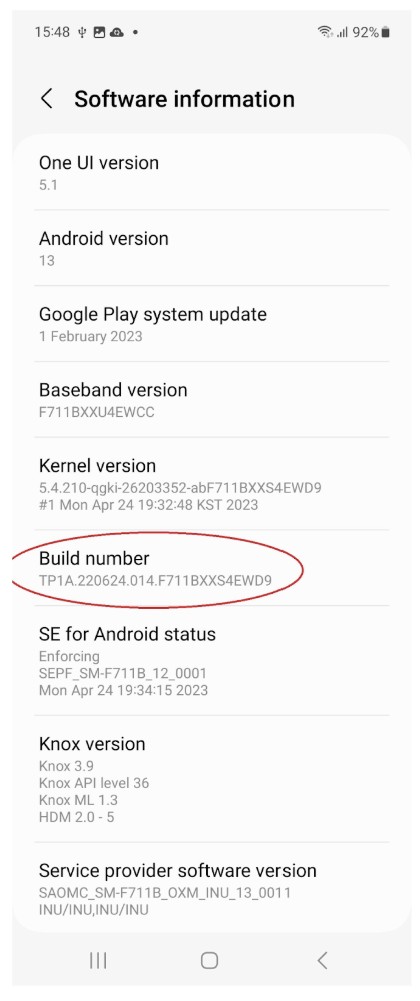
Go to Settings on your phone. Scroll down to About Phone. Find the Build Number — tap it seven times. (Yes. Seven times precisely.)
This unlocks Developer Options. Now go back to Settings, find Developer Options, and turn on USB Debugging.

Once that’s on, your phone should appear in the Stellar software as connected. Select the device, hit Scan.
Your phone might pop up asking you to install something via USB – tap Allow Always. Then another pop-up will ask for permission to access your files. Tap Allow. It needs this to actually look through your storage.
Then you wait. The scan takes a while. How long depends on how much storage your phone has – could be a few minutes, could be 10 or 15 minutes.
When it finishes, you’ll see a “Scan Complete” message. Click OK.
On the left side of the screen, expand the Videos, Photos, or the folder of your choice. You’ll see thumbnail previews of everything the scan found.

Scroll through, select what you want to recover, click Save, pick a folder on your PC to save them.
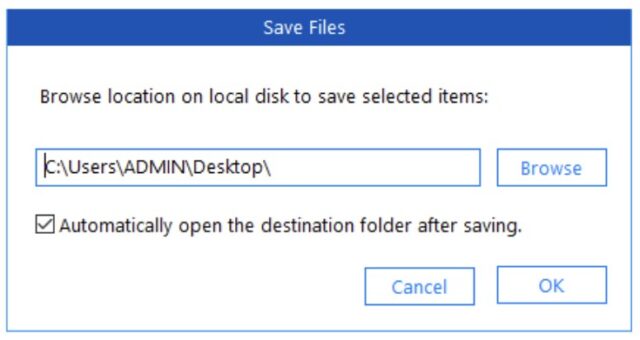
That’s genuinely it. It saves the files to your PC, and from there you can do whatever you want with them. The free version of the software allows recovery of 10 videos or photos of 10 MB each, absolutely free. Once the free limit is exhausted, you need to purchase a subscription, but the price is really low for the work this tool does.
See – recovery depends a lot on whether the data was overwritten. If you stopped using the phone quickly after deleting, your odds are good.
A Few Things People Always Ask
Can I recover data from a phone with a cracked screen?
Yes, if the phone still powers on and connects via USB, the software doesn’t care about the screen. You can navigate using USB debugging and recover files.
What about phones that won’t turn on?
See..If the phone is physically dead, software recovery won’t work. You’d need to go to a physical data recovery service, which gets expensive.
Does rooting improve recovery chances?
Technically yes. Rooted phones allow deeper access to storage. But rooting also carries risks, and honestly, for most people, the unrooted scan through Stellar is sufficient. Avoid rooting at any cost.
How much data can I actually expect to get back?
- Files deleted recently with minimal phone usage after? High chance.
- Files deleted months ago on a heavily used phone? Lower chance.
- There’s no guarantee with recovery – anyone who promises 100% success rate is lying to you.
Things to Know!
- Stop using the phone
- Check Gallery Trash/ recently deleted folder
- Check Google Photos Trash, it stores stuff for 60 days
- Check cloud backups – Google Drive, Samsung Cloud, Dropbox, whatever you use
- Use Stellar Data Recovery for Android if none of the above work – download it on your Windows PC, enable USB debugging on your phone, and run the scan.
- Physical recovery service is a last resort for hardware failures.