



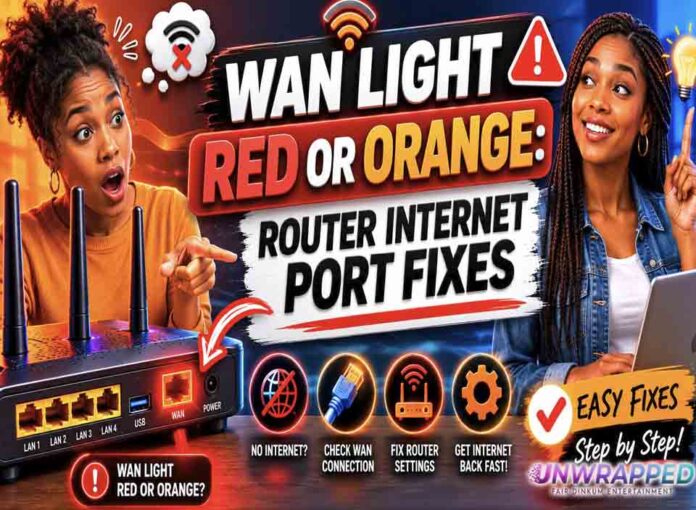
If you searched for “wan light red on router“, the useful answer is not just a colour chart. You need to know whether the light is normal, whether the internet is actually down, and what to check without making the problem worse. Router and modem lights are not perfectly standard across brands, so always match the colour to the label beside the light and the exact model. Still, the pattern below will solve most home cases.
Quick answer: A red or orange WAN light often means the router sees a problem on the internet-facing port: no cable, no valid modem link, no WAN address, or no provider connection.
What it usually means
WAN stands for Wide Area Network. On a home router, it is normally the port that connects to the modem, ONT, or provider box. ASUS recommends checking the WAN connection, ISP network cable, and RJ45 cable when troubleshooting abnormal WAN LED behaviour. TP-Link troubleshooting for WAN Port Unplugged includes testing the WAN port with the same cable and checking whether the Ethernet and Internet LEDs turn on. So the first suspect is usually the link between your router and the device that brings internet into the home. The key is to separate three things: power, local Wi-Fi, and the connection to the provider. A router can broadcast Wi-Fi even when the modem or fibre box has no internet. Likewise, an Ethernet light can blink simply because traffic is moving, not because anything is wrong.
Common causes include: Ethernet cable is in a LAN port instead of WAN.; Cable is loose, damaged, or not fully clicked in.; Modem or ONT is offline.; Router did not receive a WAN IP address.; Speed negotiation issue between modem and router.; Provider outage or service not activated.
Fix it in this order
- Trace the cable from modem/ONT to the router WAN or Internet port.
- Unplug and re-seat both ends firmly.
- Try another Ethernet cable.
- Restart modem/ONT first; restart router after the modem is stable.
- Check router status page for WAN IP address.
- If you recently changed routers, confirm PPPoE, VLAN, or ISP settings if required.
What not to do
Do not plug the WAN cable into random ports until you lose track. Label the cable before moving it. Also avoid changing advanced settings such as VLAN, PPPoE, bridge mode, or DNS unless you know why you are changing them. A normal reboot is safe; a factory reset is a last resort because it can erase Wi-Fi names, passwords, and custom settings.
When to get help
Call support if the modem/ONT itself is not online, or if the WAN light stays red with a known-good cable and the correct port. When contacting support, give the exact device model, the light label, the colour, whether it is solid or blinking, and how long it has been happening. That detail is far more useful than saying only that the router is broken.
FAQ
Q: Is WAN the same as Wi-Fi?
A: No. WAN is the outside internet connection. Wi-Fi is the local wireless network inside your home.
Q: Can a router work without WAN?
A: It can provide local networking, but it will not provide internet access.
Q: Is a red WAN light a router fault?
A: Maybe, but a cable, modem, ISP, or settings issue is more common.
See Also: WPS Light Blinking on Router: Meaning and Safety Notes
Another Must-Read: Ethernet or LAN Light Blinking: Is It Normal?