



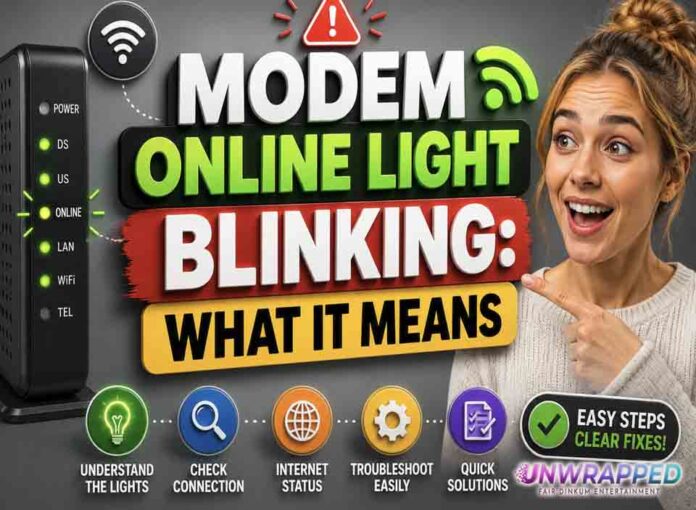
If you searched for “modem online light blinking”, the useful answer is not just a colour chart. You need to know whether the light is normal, whether the internet is actually down, and what to check without making the problem worse. Router and modem lights are not perfectly standard across brands, so always match the colour to the label beside the light and the exact model. Still, the pattern below will solve most home cases.
Quick answer: A blinking Online or Internet light on a modem usually means the modem is synchronising with the provider network and has not fully come online yet.
What it usually means
The Online light is usually more important than the Wi-Fi light. On NETGEAR cable modems, a solid green or white Internet/Online LED means the modem is online; a blinking green or white LED means the modem is synchronising with the cable provider’s CMTS; and off means the cable modem is offline. During a normal reboot, the light may blink for a while before becoming solid. If it never becomes solid, the problem is often signal, activation, outage, or cabling. The key is to separate three things: power, local Wi-Fi, and the connection to the provider. A router can broadcast Wi-Fi even when the modem or fibre box has no internet. Likewise, an Ethernet light can blink simply because traffic is moving, not because anything is wrong.
Common causes include: Modem is booting after power-up.; Coax or fibre connection is loose or not active.; Provider outage or line impairment.; New modem has not been activated.; Firmware update or provisioning change.; Splitter, old cable, or damaged connector weakens the signal.
See Also: Ethernet or LAN Light Blinking: Is It Normal?
Fix it in this order
- Wait at least five minutes after plugging in the modem.
- Check coax or provider cable finger-tight, but do not force it.
- Remove unnecessary splitters temporarily if safe to do so.
- Restart the modem once and wait again.
- Use the provider app to check activation and outage status.
- If it is a new modem, confirm the provider has the correct MAC address.
What not to do
Do not keep rebooting every minute. Modems sometimes need several minutes to scan, sync, and provision. Also avoid changing advanced settings such as VLAN, PPPoE, bridge mode, or DNS unless you know why you are changing them. A normal reboot is safe; a factory reset is a last resort because it can erase Wi-Fi names, passwords, and custom settings.
When to get help
Call the provider when Online keeps blinking for more than 10 to 15 minutes or after you have checked the cable and outage status. When contacting support, give the exact device model, the light label, the colour, whether it is solid or blinking, and how long it has been happening. That detail is far more useful than saying only that the router is broken.
FAQ
Q: Can Wi-Fi work while Online blinks?
A: Your local Wi-Fi may appear, but internet will not be stable until the modem is online.
Q: Is this a router problem?
A: Usually not. Online is a modem/provider-side status.
Q: Can a splitter cause it?
A: Yes. Poor splitters and loose coax can weaken the signal.
Another Must-Read: WAN Light Red or Orange: Router Internet Port Fixes